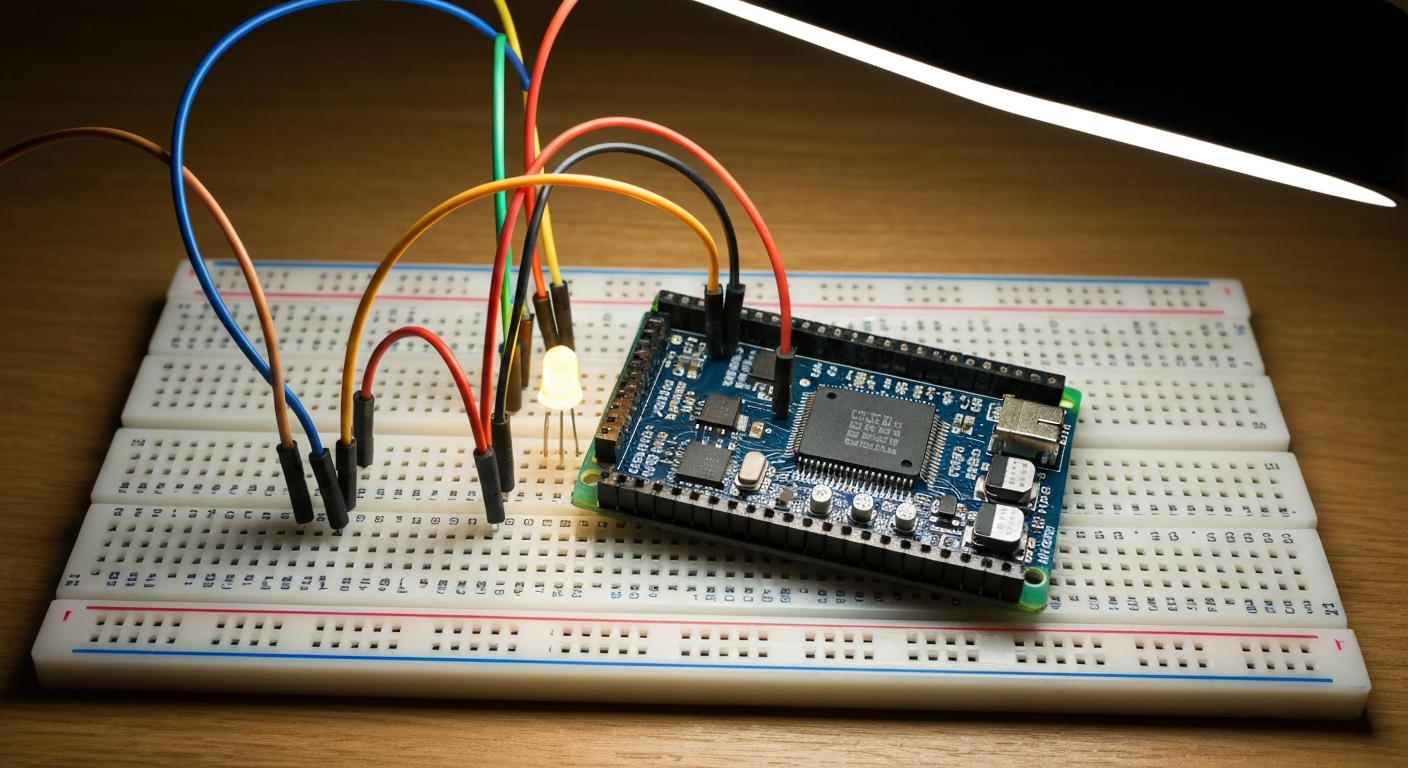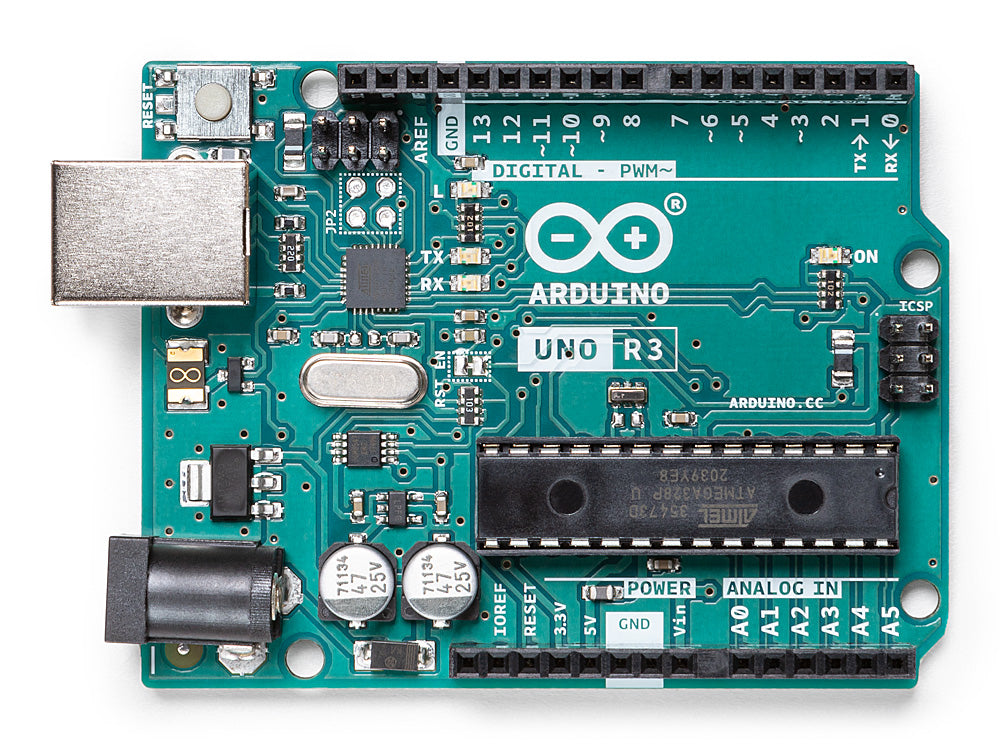
The photo shows an official UNO R3 board, not a complete starter kit or a finished project. These are project ideas; we have not bench-tested every circuit.
Quick answer: Start your electronics journey with Arduino by building 10 beginner-friendly projects, from a simple LED blink to a fully functional weather station. You’ll progress from basic wiring and digital output to advanced concepts like sensors and sequencing logic, gaining a solid foundation in both electronics and embedded programming. Just grab an Arduino starter kit and the free IDE, and you’re ready to learn by doing.
Start with one board and one example
If you have ever wanted to build something that blinks, beeps, measures, or moves, Arduino is where you start. It is an open-source microcontroller platform that has introduced millions of people to electronics and programming since 2005. The beauty of Arduino is that you do not need an engineering degree to get going. Start with one documented project and the parts it requires.
This list takes you from absolute zero to building a real weather station. Each project teaches a new concept, and by the time you finish all ten, you will have a solid foundation in both electronics and embedded programming.
What You Need to Get Started
Before diving in, grab an Arduino starter kit. A good kit includes an Arduino Uno (or compatible clone), a breadboard, jumper wires, resistors, LEDs, a few sensors, and a USB cable. Compare the contents against the chosen project; a kit name does not guarantee that every required component is included.
You will also need the Arduino IDE, which is free and runs on Windows, Mac, and Linux.
1. LED Blink — The “Hello World” of Hardware
What you learn: Uploading code, digital output, basic circuit wiring.
This is the classic first project. You connect an LED to a digital pin through a resistor and make it blink on and off. It sounds trivial, but it proves your entire toolchain works: the IDE, the USB connection, the board, and your wiring.
Pro tip: Once blinking works, experiment with the delay() values. Try making it blink in Morse code patterns. You will internalize how timing works in embedded systems.
Components: 1 LED, 1 220-ohm resistor, 2 jumper wires.
2. Traffic Light Simulator
What you learn: Multiple digital outputs, sequencing logic.
Expand from one LED to three (red, yellow, green) and code a realistic traffic light cycle. This project teaches you to manage multiple outputs in sequence and think about state transitions, which is fundamental to any electronics project.
Challenge: Add a pedestrian button using a push button that interrupts the cycle and triggers a walk signal.
Components: 3 LEDs (red, yellow, green), 3 resistors (220-ohm), jumper wires.
3. Button-Controlled LED
What you learn: Digital input, pull-up/pull-down resistors, debouncing.
Wire up a push button that turns an LED on when pressed and off when released. Then modify it so one press toggles the LED on, and the next press toggles it off. You will immediately discover “bouncing” — where the button registers multiple presses — and learn how to fix it in software.
Pro tip: Learn about the Arduino’s built-in INPUT_PULLUP mode. It saves you an external resistor and is the standard approach in real products.
Components: 1 push button, 1 LED, 1 resistor (220-ohm), jumper wires.
4. Potentiometer-Controlled LED Brightness
What you learn: Analog input, PWM (analogWrite), mapping values.
Connect a potentiometer (a dial/knob) to an analog input pin, and use its reading to control the brightness of an LED using PWM. This project introduces the analog world — you move beyond simple on/off into continuous values.
Key concept: The map() function converts the potentiometer’s 0-1023 range to the LED’s 0-255 PWM range. You will use map() constantly in future projects.
Components: 1 potentiometer (10K), 1 LED, 1 resistor (220-ohm), jumper wires.
5. Piezo Buzzer Melody Player
What you learn: Tone generation, arrays, functions.
Use a piezo buzzer to play melodies by defining note frequencies and durations in arrays. Start with something simple like “Mary Had a Little Lamb” and work up to the Mario theme. This project teaches you to work with arrays and write reusable functions.
Pro tip: Wrap your note-playing logic in a function that accepts a frequency and duration. This modular approach is how professionals structure their code.
Components: 1 piezo buzzer, jumper wires.
6. Temperature and Humidity Monitor
What you learn: Using sensor libraries, serial communication, data interpretation.
Connect a DHT22 temperature and humidity sensor and display real-time readings in the Serial Monitor. This project introduces external libraries (you will install the DHT library through the Library Manager) and serial communication.
What makes it practical: This is genuinely useful. Put it in your garage, workshop, or near your plants. It is real data from the real world.
Components: 1 DHT22 sensor, 1 resistor (10K), jumper wires.
7. Ultrasonic Distance Sensor with LED Bar Graph
What you learn: HC-SR04 sensor, timing functions, visual feedback.
Use an ultrasonic sensor to measure distance and display the reading as an LED bar graph — more LEDs light up as objects get closer. This combines input (the sensor) with multi-output display and introduces pulseIn() for measuring signal timing.
Safety note: The HC-SR04 operates at 5V. Double-check your wiring before powering on; reversing the power pins can damage the sensor.
Components: 1 HC-SR04 ultrasonic sensor, 5-8 LEDs, matching resistors, jumper wires.
8. LCD Display with Custom Messages
What you learn: I2C communication, display libraries, string formatting.
Connect a 16x2 LCD display (I2C version recommended) and show custom messages, sensor readings, or a clock. The I2C version needs only 4 wires instead of 12+, making it much cleaner to set up.
Check that an I2C LCD display module has compatible voltage requirements and a supported library.
Pro tip: Combine this with Project 6 and you have a standalone temperature display that does not need a computer connected.
Components: 1 I2C 16x2 LCD display, jumper wires.
9. Servo Motor Control with Joystick
What you learn: Servo library, analog input mapping, real-time control.
Connect a joystick module and a servo motor. Moving the joystick left and right rotates the servo in real time. This project bridges the gap between electronics and mechanical movement, which is the foundation of robotics.
Key concept: Servos expect a PWM signal that maps to an angle (0-180 degrees). The Servo library handles the low-level timing so you just call servo.write(angle).
Components: 1 servo motor (SG90), 1 joystick module, jumper wires.
10. Weather Station with Data Logging
What you learn: Multiple sensors, SD card writing, complete system design.
This final project brings everything together. Combine the DHT22 (temperature/humidity), a BMP280 (barometric pressure), and an LDR (light level) with an LCD display and an SD card module for data logging. You build a complete, standalone weather station that records data over time.
Parts List
- Arduino Uno
- DHT22 temperature/humidity sensor
- BMP280 barometric pressure sensor
- LDR (photoresistor) + 10K resistor
- I2C 16x2 LCD display
- Micro SD card module + SD card
- Breadboard and jumper wires
Building the Station
Start by getting each sensor working individually (you already know the DHT22 from Project 6). Then combine them one by one, adding each sensor’s reading to the LCD and SD card output. The SD card library is built into the Arduino IDE — no extra installation needed.
Pro tip: Log data as CSV. Then you can open it in a spreadsheet and create charts of temperature, humidity, and pressure over days or weeks. Real data science from a thirty-dollar microcontroller.
Where to Go After These 10 Projects
Once you have completed this list, you have a genuine working knowledge of digital and analog I/O, sensors, displays, motors, data logging, and serial communication. From here, the natural next steps are:
- ESP32 or ESP8266: WiFi-enabled microcontrollers that let you build IoT projects and send data to the cloud. If you’re torn between boards, our ESP32 vs Arduino: which to choose breakdown explains when each platform wins.
- Robotics: Combine motors, sensors, and decision logic to build line-following or obstacle-avoiding robots.
- Home automation: Build custom smart home sensors and controllers (see our guide on building a DIY smart home on a budget).
- Better soldering: Most “my circuit doesn’t work” issues trace back to cold joints. The best soldering irons for beginners roundup covers temperature-controlled stations that won’t frustrate you on your first through-hole project.
- PCB design: Move from breadboards to designing your own printed circuit boards using KiCad.
For more maker tutorials and hardware roundups, browse the electronics category.
Final Advice
Do not just copy and paste code. Type it out. Change values. Break things on purpose and fix them. The real learning happens when something does not work and you figure out why. Every maker and engineer has a drawer full of half-finished projects and hard-won debugging stories. That is the process. Enjoy it.
Frequently Asked Questions
What is Arduino and why is it good for beginners?
Arduino is an open-source electronics platform that makes it easy to build interactive projects. It’s ideal for beginners because it simplifies complex electronics and programming into an accessible, hands-on learning experience. You don’t need an engineering degree to start creating.
Do I need programming experience to start with Arduino?
No, you don’t need prior programming experience. Arduino uses a simplified C++ language, and many beginner projects provide ready-to-use code examples. This article’s projects progressively teach you programming concepts as you build.
What essential components do I need to buy for Arduino beginner projects?
You’ll need an Arduino Uno board, a breadboard, jumper wires, resistors, LEDs, and a few basic sensors. A good starter kit like the Elegoo Uno R3 Super Starter Kit bundles most of these components.
Is Arduino difficult to learn for someone new to electronics?
Arduino is designed to be beginner-friendly, focusing on practical, hands-on learning. While some concepts might be new, the progressive projects in this guide break down complex ideas into manageable steps. Curiosity and a willingness to experiment are your best tools.
What software do I use to program my Arduino board?
You’ll use the free Arduino IDE (Integrated Development Environment) to write and upload code to your board. It’s available for Windows, Mac, and Linux, providing a user-friendly interface for your projects.
What is the very first Arduino project I should try?
The “LED Blink” project is the classic starting point, often called the “Hello World” of hardware. It teaches you to upload code, wire a basic circuit, and confirm your entire setup is working correctly.
Why do I need resistors with LEDs in Arduino projects?
Resistors are crucial for protecting your LEDs from too much current, which can burn them out. They limit the flow of electricity, ensuring your LEDs operate safely and last longer. Always use the correct resistor value for your components.
Can I build useful real-world projects with Arduino as a beginner?
Absolutely! Even beginner projects like a traffic light simulator or a button-controlled LED teach fundamental concepts applicable to many useful devices. By the end of this guide, you’ll even build a functional weather station.
How long does it typically take to complete these 10 beginner Arduino projects?
The time varies depending on your pace and prior experience, but many beginners can complete these projects over several dedicated afternoons or a few weekends. Focus on understanding each concept before moving to the next.
What is “debouncing” and why is it important for buttons in Arduino?
Debouncing addresses the issue where a mechanical button press can register multiple times due to tiny electrical fluctuations. Implementing debouncing in your code ensures that each physical press is counted as only one input, preventing erratic behavior in your projects.
Use the official UNO R3 reference and the component datasheets for pin assignments and electrical limits. Disconnect power before changing wiring.