Why the Raspberry Pi Pico Is a Great First Microcontroller
The Raspberry Pi Pico is cheap, fast, and forgiving. For about $4 you get a dual-core ARM Cortex-M0+ running at 133 MHz, 264 KB of SRAM, 2 MB of flash, 26 GPIO pins, and a USB-C port. That is absurd value. The Pico W adds Wi-Fi and Bluetooth for roughly $6. Unlike an Arduino Uno, you can program it in Python (MicroPython) as well as C/C++, which makes it dramatically less painful for beginners.
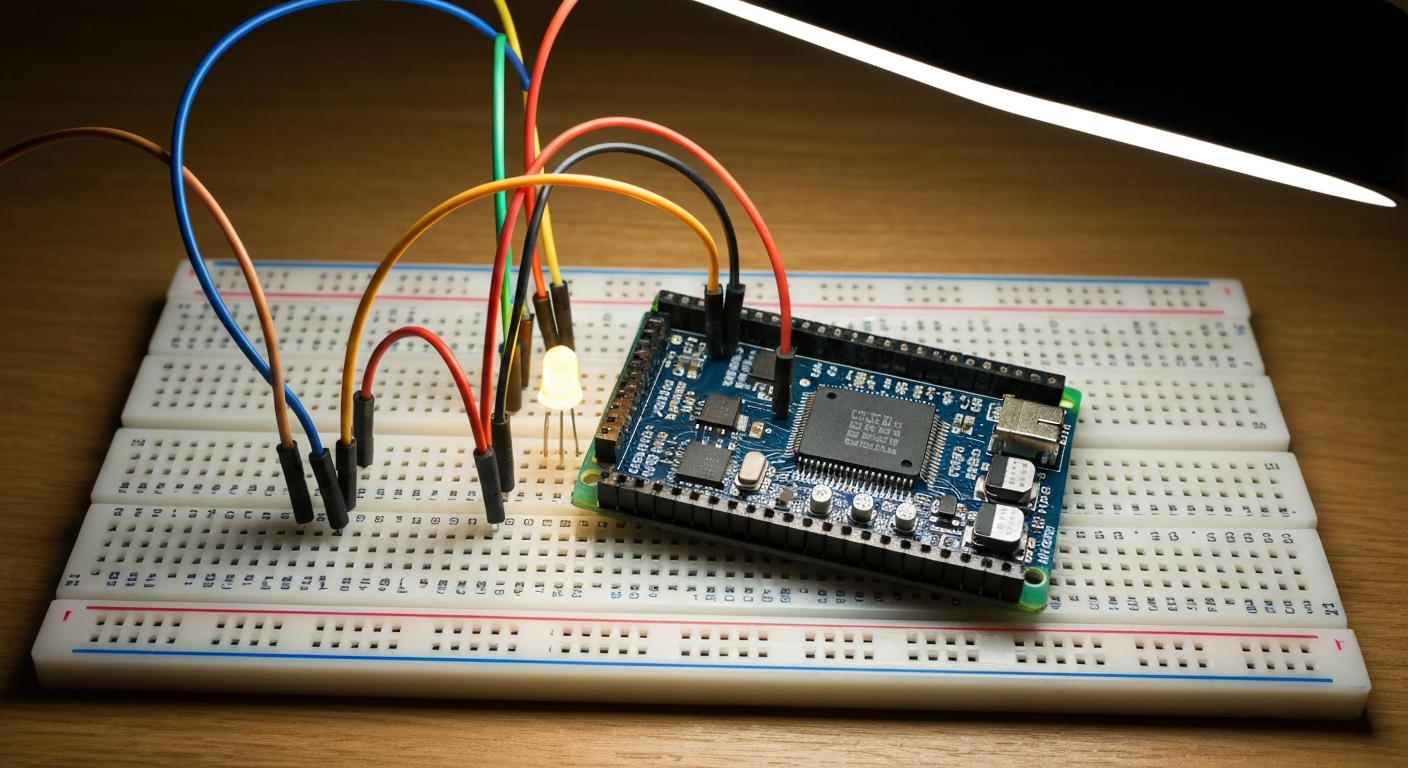
All ten projects below use MicroPython. They work on both the Pico and Pico W (the last one needs a Pico W specifically). To get started, grab a Raspberry Pi Pico W Starter Kit or build your own with an original Raspberry Pi Pico W and a decent breadboard and jumper wire set.
Before you start, flash MicroPython onto your Pico. Hold BOOTSEL while plugging it in, drag the .uf2 file onto the drive that appears, and use the Thonny IDE to run code. Thonny is free and built for this. You do not need anything fancier.
1. Blink the Onboard LED (Hello World)
Difficulty: Trivial Time: 5 minutes Parts: Just the Pico
Every microcontroller journey starts here. The Pico has an onboard LED tied to GPIO 25 (on the regular Pico) or controlled via the wireless chip on the Pico W. This one snippet proves your setup works.
from machine import Pin
from time import sleep

led = Pin("LED", Pin.OUT)

while True:
    led.toggle()
    sleep(0.5)
If you see a blinking LED, you are officially writing embedded software. If not, check that you selected the correct MicroPython interpreter in Thonny.
2. Temperature Sensor Data Logger
Difficulty: Easy Time: 30 minutes Parts: Pico, nothing else (the onboard sensor is good enough), or a DS18B20 waterproof probe if you want to log outdoor temperature.
The Pico has a built-in temperature sensor connected to the internal ADC on channel 4. It is not laboratory-accurate, but it is perfect for learning. This project reads the temperature every 10 seconds and writes it to a CSV file in the Pico’s flash storage.
from machine import ADC, Pin
from time import sleep, time

sensor = ADC(4)
conversion = 3.3 / 65535

with open("temp_log.csv", "a") as log:
    log.write("timestamp,celsius\n")
    while True:
        reading = sensor.read_u16() * conversion
        temp_c = 27 - (reading - 0.706) / 0.001721
        log.write(f"{time()},{temp_c:.2f}\n")
        log.flush()
        sleep(10)
What you learn: ADC reads, unit conversion, writing files on a microcontroller, persistent logging.
3. Capacitive Touch Light Switch
Difficulty: Easy Time: 30 minutes Parts: Pico, 1 M-ohm resistor, a paperclip or strip of copper tape, LED
The Pico’s RP2040 does not have dedicated capacitive touch hardware like an ESP32, but you can fake it with a high-value resistor and software timing. When you touch the exposed wire, the capacitance of your finger slows down how fast a pin settles, and you can detect the change. Wire GPIO 16 to one end of a 1M resistor, the other end to GPIO 17, and touch a wire attached to GPIO 17.
from machine import Pin
from time import sleep

out = Pin(16, Pin.OUT)
sense = Pin(17, Pin.IN)
led = Pin("LED", Pin.OUT)
on = False

def read_touch():
    out.value(1)
    count = 0
    while sense.value() == 0 and count < 1000:
        count += 1
    out.value(0)
    return count

while True:
    if read_touch() > 200:
        on = not on
        led.value(on)
        sleep(0.3)
    sleep(0.05)
What you learn: Timing loops, software sensing, toggle state logic.
4. PIR Motion Detector Alarm
Difficulty: Easy Time: 20 minutes Parts: Pico, HC-SR501 PIR sensor, passive buzzer, jumper wires
A tiny room alarm. The PIR sensor outputs high when it sees movement, and you fire the buzzer on the edge.
from machine import Pin, PWM
from time import sleep

pir = Pin(15, Pin.IN)
buzzer = PWM(Pin(14))
buzzer.duty_u16(0)

while True:
    if pir.value():
        buzzer.freq(1000)
        buzzer.duty_u16(32768)
        sleep(1)
        buzzer.duty_u16(0)
        sleep(2)
    sleep(0.1)
What you learn: Digital input, PWM for tone generation, basic sensor wiring.
5. Ultrasonic Distance Sensor
Difficulty: Easy to moderate Time: 30 minutes Parts: Pico, HC-SR04 ultrasonic sensor, a 10k and 20k resistor (the sensor is 5 V, Pico is 3.3 V)
Important: the HC-SR04’s echo pin outputs 5 V. Do not connect it directly to a Pico GPIO. Use a voltage divider (10k from echo to your Pico pin, 20k from your Pico pin to ground) or a proper level shifter.
from machine import Pin
from time import sleep_us, ticks_us, ticks_diff, sleep

trig = Pin(3, Pin.OUT)
echo = Pin(2, Pin.IN)

def distance_cm():
    trig.value(0)
    sleep_us(2)
    trig.value(1)
    sleep_us(10)
    trig.value(0)
    while echo.value() == 0:
        start = ticks_us()
    while echo.value() == 1:
        end = ticks_us()
    return (ticks_diff(end, start) * 0.0343) / 2

while True:
    print(f"{distance_cm():.1f} cm")
    sleep(0.5)
What you learn: Microsecond timing, pulse measurement, real-world level shifting.
6. Rotary Encoder Menu
Difficulty: Moderate Time: 45 minutes Parts: Pico, KY-040 rotary encoder, a few pull-up resistors (often included on the module)
Rotary encoders are the input method of choice for any project with options. This example counts up or down when you turn the shaft and resets to zero when you click.
from machine import Pin
from time import sleep

clk = Pin(10, Pin.IN, Pin.PULL_UP)
dt = Pin(11, Pin.IN, Pin.PULL_UP)
sw = Pin(12, Pin.IN, Pin.PULL_UP)

counter = 0
last_clk = clk.value()

while True:
    current = clk.value()
    if current != last_clk and current == 0:
        if dt.value() != current:
            counter += 1
        else:
            counter -= 1
        print(f"Counter: {counter}")
    last_clk = current
    if sw.value() == 0:
        counter = 0
        print("Reset")
        sleep(0.3)
    sleep(0.001)
What you learn: Edge detection, debouncing, multi-input handling.
7. OLED Display Dashboard
Difficulty: Moderate Time: 45 minutes Parts: Pico, 0.96 inch 128x64 SSD1306 OLED (I2C), jumper wires
Small I2C OLEDs are the easiest way to put a real display on your project. Install the ssd1306 MicroPython library from Thonny’s package manager. Wire SDA to GPIO 4, SCL to GPIO 5, VCC to 3.3 V, GND to GND.
from machine import Pin, I2C, ADC
from ssd1306 import SSD1306_I2C
from time import sleep

i2c = I2C(0, sda=Pin(4), scl=Pin(5))
oled = SSD1306_I2C(128, 64, i2c)
sensor = ADC(4)

while True:
    temp_c = 27 - (sensor.read_u16() * (3.3 / 65535) - 0.706) / 0.001721
    oled.fill(0)
    oled.text("Pico Dashboard", 0, 0)
    oled.text(f"Temp: {temp_c:.1f} C", 0, 20)
    oled.text("build-coded.com", 0, 50)
    oled.show()
    sleep(1)
What you learn: I2C bus, external libraries, graphics basics.
8. Button-Controlled Servo
Difficulty: Easy Time: 30 minutes Parts: Pico, SG90 micro servo, push button, 220 ohm resistor, external 5 V supply recommended
Press a button, the servo sweeps to 180. Press again, it comes back to 0. The SG90 is happy to run from the Pico’s VBUS pin for one-off testing, but for any real project power the servo separately and share ground.
from machine import Pin, PWM
from time import sleep

servo = PWM(Pin(15))
servo.freq(50)
button = Pin(14, Pin.IN, Pin.PULL_UP)
open_pos = False

def set_angle(angle):
    duty = int(1638 + (angle / 180) * 6553)
    servo.duty_u16(duty)

set_angle(0)

while True:
    if button.value() == 0:
        open_pos = not open_pos
        set_angle(180 if open_pos else 0)
        sleep(0.5)
    sleep(0.05)
What you learn: Servo PWM math, mechanical output, power isolation.
9. 7-Segment Clock
Difficulty: Moderate Time: 1 hour Parts: Pico, TM1637 4-digit 7-segment display, optional RTC module
The TM1637 is a 4-digit LED display with an incredibly simple 2-wire interface and a ready-made MicroPython library. Install micropython-tm1637 from Thonny. The Pico does not have an RTC of its own, so this simple version counts seconds since boot. Add a DS3231 RTC module if you want a clock that survives power off.
from machine import Pin
from time import sleep
import tm1637

display = tm1637.TM1637(clk=Pin(16), dio=Pin(17))
seconds = 0

while True:
    hours = (seconds // 3600) % 24
    minutes = (seconds // 60) % 60
    display.numbers(hours, minutes)
    sleep(1)
    seconds += 1
What you learn: External display drivers, time math, why RTCs exist.
10. Wi-Fi Weather Station (Pico W)
Difficulty: Moderate Time: 1 to 2 hours Parts: Raspberry Pi Pico W, BME280 sensor optional for local data
This one needs the Pico W because it uses Wi-Fi. It connects to your network, hits a public weather API (OpenWeatherMap, free tier), and prints the current conditions. Create a free API key on openweathermap.org before you start.
import network
import urequests
from time import sleep

SSID = "your-ssid"
PASSWORD = "your-password"
API_KEY = "your-openweather-key"
CITY = "Austin"

wlan = network.WLAN(network.STA_IF)
wlan.active(True)
wlan.connect(SSID, PASSWORD)

while not wlan.isconnected():
    sleep(0.5)

print("Connected:", wlan.ifconfig())

url = f"https://api.openweathermap.org/data/2.5/weather?q={CITY}&appid={API_KEY}&units=metric"

while True:
    try:
        r = urequests.get(url)
        data = r.json()
        print(f"{CITY}: {data['main']['temp']} C, {data['weather'][0]['description']}")
        r.close()
    except Exception as e:
        print("Error:", e)
    sleep(600)
What you learn: Wi-Fi connection, HTTPS requests, JSON parsing, API keys and rate limits.
Parts and Kit Suggestions
If you would rather buy a bundle than individual parts, a kit will cover almost everything in this list for $30 to $50:
- Freenove Ultimate Starter Kit for Raspberry Pi Pico W — covers all 10 projects here, includes the Pico W
- Elegoo Complete Pico Kit — alternate, slightly cheaper, Pico not always included
- Assortment of sensors and modules — if you already own a Pico
For individual upgrades that I keep recommending beyond starter kits: a proper set of DuPont jumper wires and a quality 830-point breadboard outlast the flimsy ones that ship with kits.
A Few Tips That Will Save You Hours
Before you start burning weekends:
- Always read from left to right when wiring. Match the pinout diagram to your physical board rather than trusting colors.
- Keep your Pico on a breadboard for prototyping. Do not solder anything until the project works.
- Use
print()everywhere while debugging. Thonny shows output live in the REPL. - Save your scripts to your computer, not just the Pico. Flash corruption is rare but it happens.
- When something does not work, unplug and replug the Pico. MicroPython’s REPL sometimes needs a reset.
- Keep all your finished projects in a single Git repo, even if you are the only one who will ever see it. Future-you will thank present-you.
Final Thoughts
The Raspberry Pi Pico hits a sweet spot that Arduino did ten years ago. It is cheap, it is well documented, it runs Python, and it has enough horsepower that you are not going to outgrow it for anything a hobbyist usually builds. Work through these ten projects and you will have touched every major category of sensor and output you are likely to use for the next two years of the hobby.
Pick project one right now, make the LED blink, and everything else follows from there. The hardest part of electronics is starting, and this article just moved that bar to “plug it in and run ten lines of Python.”