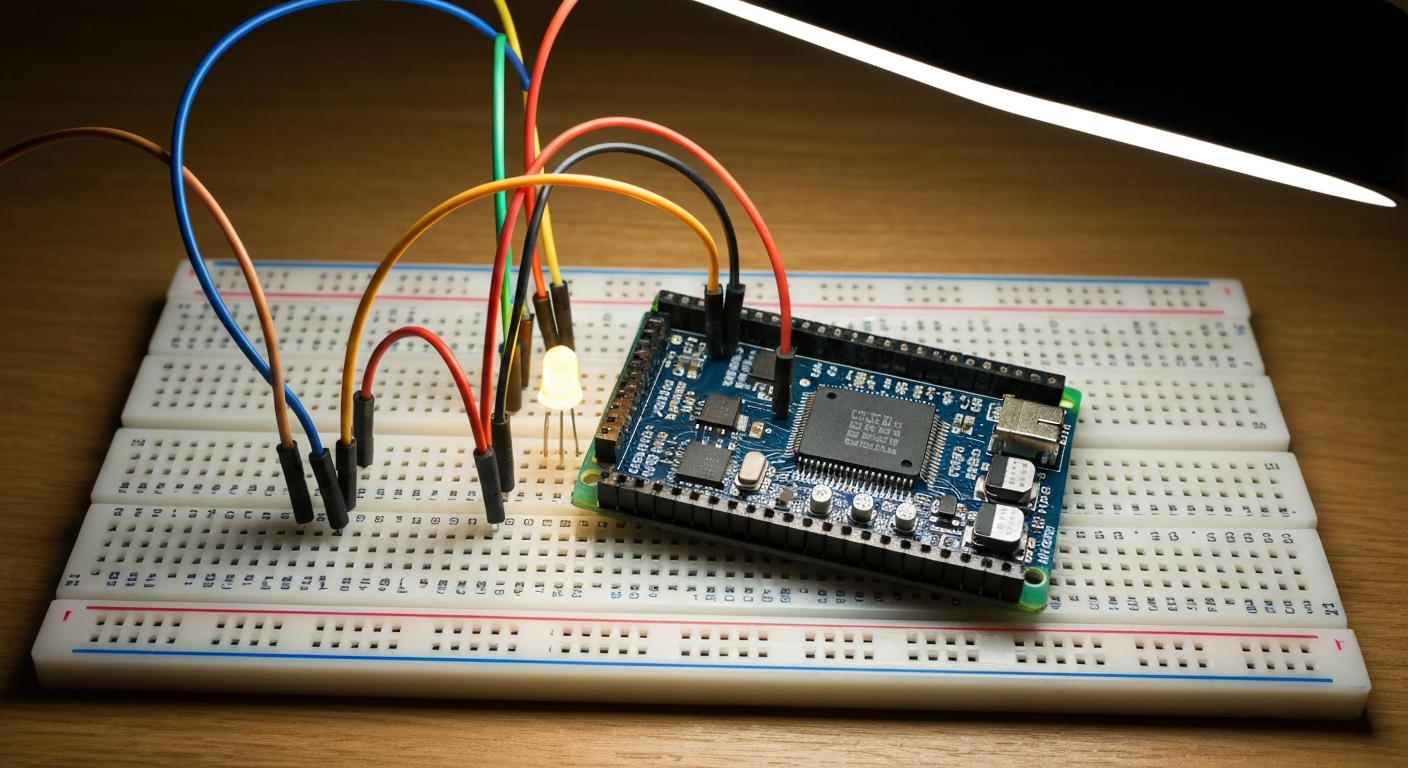
The Raspberry Pi has long been a darling of the DIY tech community, a tiny, affordable computer capable of punching far above its weight. As we look ahead to 2026, the landscape for home server enthusiasts is brighter than ever, thanks in no small part to the arrival of the Raspberry Pi 5. With its significantly boosted performance, faster I/O, and improved thermal management, the Pi 5 transforms what was once a fun experiment into a genuinely robust platform for essential home services.
For any of the projects discussed here, we strongly recommend the Raspberry Pi 5 with 8GB of RAM. This model provides ample memory for demanding applications, multitasking, and future-proofing your setup. Its powerful quad-core ARM Cortex-A76 processor delivers desktop-class performance, while the dedicated PCI-E 2.0 interface unlocks the potential for lightning-fast NVMe SSD storage – a game-changer for server applications. Combine this with Gigabit Ethernet, dual 4K display output, and Wi-Fi 6, and you have an incredibly capable foundation.
Setting up a home server isn’t just about saving money; it’s about reclaiming control over your data, enhancing privacy, and customizing your digital environment exactly how you want it. Whether you’re tired of intrusive ads, want to centralize your media, or build the ultimate smart home, the Raspberry Pi 5 makes these ambitions not just possible, but practical and enjoyable.
Before you dive in, a crucial piece of advice: while the Raspberry Pi 5 is powerful, do not attempt to run all eight of these projects on a single Pi. Resource contention, especially for I/O and CPU, will lead to a frustrating experience. Instead, pick one or two core projects that align with your immediate needs, or consider dedicating separate Pis for particularly resource-intensive tasks like a media server or NAS.
Here are eight Raspberry Pi home server projects that are absolutely worth building in 2026, leveraging the full potential of the Raspberry Pi 5.
1. Pi-hole: Network-Wide Ad Blocking
What it does: Pi-hole acts as a DNS sinkhole, blocking advertisements and malicious domains for every device on your network without needing individual browser extensions. When a device requests a domain, Pi-hole checks if it’s on a blocklist. If it is, Pi-hole returns a “non-existent” address, preventing the ad or tracker from loading. It works at the network level, meaning ads are blocked in apps, smart TVs, and IoT devices, not just web browsers.
Why it’s worth building: In 2026, online advertising continues to be pervasive and increasingly aggressive. Pi-hole offers a powerful, system-wide solution to combat this. It significantly improves network performance by preventing ad content from even being downloaded, enhances privacy by blocking tracking domains, and provides a cleaner, faster browsing experience for everyone in your home. It’s incredibly satisfying to see the real-time statistics of how many ads and trackers have been blocked. The Pi 5’s ample RAM and fast networking ensure Pi-hole runs with zero discernible latency.
Hardware needed beyond Pi:
- High-endurance microSD card (16GB+ recommended for OS) OR NVMe SSD (with a suitable M.2 HAT for the Pi 5) for the OS. NVMe is highly recommended for longevity and speed.
- Official Raspberry Pi 5 power supply (27W USB-C).
- Ethernet cable (for optimal network stability, though Wi-Fi 6 works).
Install method (Docker Compose): Docker is an excellent way to run Pi-hole, isolating it from your main OS and making updates simple.
version: "3"

services:
  pihole:
    container_name: pihole
    image: pihole/pihole:latest
    ports:
      - "53:53/tcp"
      - "53:53/udp"
      - "67:67/udp" # Only required if you are using Pi-hole as your DHCP server
      - "80:80/tcp"
    environment:
      TZ: 'America/New_Creek' # Replace with your timezone
      WEBPASSWORD: 'your_secure_admin_password' # Change this!
      FTLCONF_REPLY_ADDR4: '192.168.1.10' # Replace with your Pi's static IP address
    volumes:
      - './etc-pihole:/etc/pihole'
      - './etc-dnsmasq.d:/etc/dnsmasq.d'
    # Recommended for Pi-hole, or it will not restart after a reboot
    cap_add:
      - NET_ADMIN
    restart: unless-stopped
After saving this as docker-compose.yml, navigate to the directory in your terminal and run docker compose up -d. Then configure your router or devices to use your Pi’s IP address as their DNS server.
Maintenance burden: Low. Once set up, Pi-hole largely runs itself. Occasional updates (via docker compose pull and docker compose up -d) and adding/removing blocklists are the primary tasks.
Who shouldn’t bother: Individuals who rely heavily on specific websites or services that break without ads (though Pi-hole offers easy whitelisting), or those who prefer client-side ad blockers for specific browser features. If you don’t mind ads at all, this project won’t offer much benefit.
2. Home Assistant: The Ultimate Smart Home Brain
What it does: Home Assistant (HA) is an open-source home automation platform that prioritizes local control and privacy. It integrates with thousands of smart devices, services, and platforms, allowing you to create complex automations, dashboards, and scripts that bring all your smart home tech under one roof, often without reliance on cloud services. From lights and thermostats to sensors and media players, HA can control almost anything.
Why it’s worth building: As smart homes become more prevalent in 2026, the need for a centralized, private, and flexible control system grows. Home Assistant liberates you from vendor lock-in, fragmented apps, and privacy concerns associated with cloud-dependent systems. The Pi 5’s processing power and 8GB RAM are perfectly suited to handle a large number of integrations, process complex automations, and serve a responsive web interface. It allows for unparalleled customization, giving you complete control over your home’s intelligence.
Hardware needed beyond Pi:
- NVMe SSD (with M.2 HAT) is highly recommended for the OS and HA database, as SD cards can wear out quickly with frequent writes.
- Official Raspberry Pi 5 power supply.
- Zigbee/Z-Wave USB dongle (e.g., Sonoff Zigbee 3.0 USB Dongle Plus, Aeotec Z-Stick) if you plan to integrate Zigbee or Z-Wave devices.
- Ethernet cable (recommended for stability).
- Optional: UPS (Uninterruptible Power Supply) for power outage protection.
Install method (Docker Compose - Home Assistant Container): This method runs Home Assistant as a Docker container on a standard Raspberry Pi OS installation.
version: '3'
services:
  homeassistant:
    container_name: homeassistant
    image: ghcr.io/home-assistant/home-assistant:stable
    volumes:
      - ./config:/config
      - /etc/localtime:/etc/localtime:ro
    restart: unless-stopped
    privileged: true # Required for some USB devices like Zigbee/Z-Wave dongles
    network_mode: host # Allows HA to discover devices on your network
    environment:
      TZ: 'America/New_Creek' # Replace with your timezone
Save this as docker-compose.yml, create a config directory in the same location (mkdir config), then run docker compose up -d. Home Assistant will be accessible at http://your_pi_ip:8123.
Maintenance burden: High. While the core system is stable, Home Assistant evolves rapidly with monthly updates, new features, and breaking changes. Keeping integrations working, troubleshooting issues, and constantly refining automations requires dedication and a willingness to learn. It’s an ongoing hobby, not a set-and-forget solution.
Who shouldn’t bother: Users who prefer simple, plug-and-play smart home devices with minimal setup, or those who are not comfortable with troubleshooting, reading documentation, and investing time into customization. If you just want to turn on a light with your voice and don’t care about local control or advanced automations, a commercial hub might be a better fit.
3. Plex / Jellyfin Media Server: Your Personal Netflix
What it does: A media server allows you to centralize your personal collection of movies, TV shows, music, and photos, making it accessible from any device in your home (and potentially remotely). Plex is a popular, user-friendly option with a polished interface and broad client support, though some advanced features are paywalled. Jellyfin is a fully free and open-source alternative that offers similar functionality without any proprietary restrictions.
Why it’s worth building: As streaming services fragment and content becomes harder to find across different platforms, a personal media server becomes invaluable. It offers a dedicated, ad-free experience for your own content, ensures you always have access to your library regardless of internet connection, and lets you share media with family and friends. The Pi 5, with its improved CPU and PCIe storage, can comfortably handle multiple simultaneous transcoded streams, especially for 1080p content, making it a viable alternative to more expensive dedicated hardware. Jellyfin, being open source, gives you complete control and privacy.
Hardware needed beyond Pi:
- Large external USB 3.0 hard drive(s) (HDD or SSD) for media storage. Consider an enclosure for multiple drives if your collection is extensive.
- NVMe SSD (with M.2 HAT) for the OS and application, ensuring responsive UI and database performance.
- Official Raspberry Pi 5 power supply.
- Ethernet cable (absolutely essential for reliable media streaming).
Install method (Docker Compose for Jellyfin): We’ll focus on Jellyfin for its open-source nature and excellent performance on the Pi.
version: "3.8"
services:
  jellyfin:
    image: jellyfin/jellyfin:latest
    container_name: jellyfin
    user: 1000:1000 # Replace with your user ID and group ID (e.g., `id -u` and `id -g` in terminal)
    network_mode: host # Simplifies network setup for discovery
    volumes:
      - ./config:/config # Configuration files
      - ./cache:/cache   # Cache directory
      - /path/to/your/media:/media:ro # Mount your media library, replace with actual path
      # - /path/to/your/tvshows:/tvshows:ro # Optional: separate mounts for organization
      # - /path/to/your/movies:/movies:ro # Optional: separate mounts for organization
    restart: unless-stopped
    environment:
      TZ: 'America/New_Creek' # Replace with your timezone
      PUID: 1000 # User ID - matches 'user' above
      PGID: 1000 # Group ID - matches 'user' above
    # For hardware transcoding on Raspberry Pi 5 (requires specific setup in Jellyfin UI)
    # devices:
    #   - /dev/dri/renderD128:/dev/dri/renderD128
Save as docker-compose.yml, create config and cache directories, ensure your media directory is accessible, then run docker compose up -d. Jellyfin will be at http://your_pi_ip:8096. Note: Hardware transcoding support for the Pi 5’s VPU in Docker may require additional configuration and kernel modules, but software transcoding is robust on the Pi 5’s CPU for most 1080p content.
Maintenance burden: Medium. Initial setup requires organizing your media and configuring libraries. Ongoing tasks include adding new media, updating Jellyfin (via docker compose pull and docker compose up -d), and ensuring your external drives are healthy.
Who shouldn’t bother: Individuals who exclusively use commercial streaming services and have no interest in curating their own media library. If you’re content with Netflix, Disney+, etc., and don’t own digital copies of media, this project isn’t for you.
4. Nextcloud: Your Self-Hosted Google Drive
What it does: Nextcloud is an open-source suite of client-server software for creating and using file hosting services. It functions as a self-hosted alternative to cloud services like Google Drive, Dropbox, or OneDrive. It offers file storage, sharing, synchronization, and a rich ecosystem of apps for calendar, contacts, notes, video calls, and more, all under your complete control.
Why it’s worth building: In an era of increasing data privacy concerns and subscription fatigue, Nextcloud empowers you to take ownership of your digital life. Hosting your own cloud means your data resides on your hardware, not a corporation’s servers. It’s ideal for personal backups, sharing files with family, collaborative document editing, and ensuring your sensitive information remains private. The Pi 5’s fast storage (NVMe SSD is crucial here) and network capabilities make Nextcloud surprisingly responsive and reliable for personal or small-group use.
Hardware needed beyond Pi:
- NVMe SSD (with M.2 HAT) is essential. SD cards are too slow and unreliable for a Nextcloud database and frequent file I/O.
- Official Raspberry Pi 5 power supply.
- External USB 3.0 HDD/SSD if you need significantly more storage than your NVMe drive provides for your files (mount it as an external storage volume within Nextcloud).
- Ethernet cable (highly recommended).
Install method (Docker Compose): This setup uses Nginx as a reverse proxy, Nextcloud, and PostgreSQL for the database, providing a robust and scalable solution.
version: '3'

volumes:
  nextcloud:
  db:
  nginx:

services:
  db:
    image: postgres:15-alpine
    restart: always
    volumes:
      - db:/var/lib/postgresql/data
    environment:
      POSTGRES_DB: nextcloud
      POSTGRES_USER: nextclouduser
      POSTGRES_PASSWORD: your_strong_db_password # Change this!

  app:
    image: nextcloud:latest
    restart: always
    volumes:
      - nextcloud:/var/www/html
      - /path/to/your/data:/var/www/html/data # Mount your actual data directory here
    environment:
      POSTGRES_HOST: db
      POSTGRES_DB: nextcloud
      POSTGRES_USER: nextclouduser
      POSTGRES_PASSWORD: your_strong_db_password # Must match db service password
      NEXTCLOUD_OVERWRITECLIURL: "https://your.domain.com" # If using a domain
      NEXTCLOUD_OVERWRITECWEBROOT: "/"
      NEXTCLOUD_TRUSTED_PROXIES: "nginx" # If using Nginx as proxy
    depends_on:
      - db
    env_file:
      - .env # Optional: for more environment variables

  nginx:
    image: nginx:alpine
    restart: always
    ports:
      - 80:80
      - 443:443
    volumes:
      - nginx:/etc/nginx/conf.d
      - ./nginx/nginx.conf:/etc/nginx/nginx.conf:ro
      - ./nginx/certs:/etc/nginx/certs:ro # For SSL certificates
    depends_on:
      - app
This is a more complex setup. You’ll need to create an nginx.conf file for Nextcloud and potentially handle SSL certificates (e.g., with Certbot). A simpler initial setup might skip Nginx and expose port 80/443 directly from the app container, but Nginx is recommended for security and performance. A basic Nginx config often looks like:
server {
    listen 80;
    server_name your.domain.com; # Or your Pi's IP
    return 301 https://$host$request_uri;
}

server {
    listen 443 ssl;
    server_name your.domain.com; # Or your Pi's IP

    ssl_certificate /etc/nginx/certs/fullchain.pem;
    ssl_certificate_key /etc/nginx/certs/privkey.pem;

    root /var/www/html;
    index index.php index.html;

    location / {
        try_files $uri $uri/ /index.php?$query_string;
    }

    location ~ \.php(?:$|/) {
        fastcgi_split_path_info ^(.+\.php)(/.+)$;
        include fastcgi_params;
        fastcgi_param SCRIPT_FILENAME $document_root$fastcgi_script_name;
        fastcgi_param PATH_INFO $fastcgi_path_info;
        fastcgi_pass app:9000; # 'app' is the name of your Nextcloud service
    }

    # Add other Nextcloud specific Nginx configurations here
}
After saving docker-compose.yml, creating directories, and configuring Nginx, run docker compose up -d. Then access at http://your_pi_ip or https://your.domain.com.
Maintenance burden: Medium. Initial setup is more involved, especially with Nginx and SSL. Regular updates, managing storage, and ensuring backups are crucial. Nextcloud updates can sometimes introduce minor issues with apps, requiring attention.
Who shouldn’t bother: Users who are completely comfortable with commercial cloud providers and don’t prioritize data privacy or control. If you have minimal technical skills and prefer a “set it and forget it” solution for file storage, a commercial service will be less demanding.
5. AdGuard Home: The Modern Pi-hole Alternative
What it does: AdGuard Home is an open-source, network-wide software for blocking ads and tracking. Similar to Pi-hole, it acts as a DNS server that filters out unwanted content. Where it distinguishes itself is its modern web interface, native support for DNS-over-HTTPS (DoH), DNS-over-TLS (DoT), and DNSCrypt, and more granular control over filtering rules. It can also act as a DHCP server.
Why it’s worth building: In 2026, encrypted DNS protocols are becoming increasingly important for privacy. AdGuard Home offers a cutting-edge solution that not only blocks ads and trackers but also encrypts your DNS queries, preventing ISPs and other third parties from snooping on your internet activity. Its user-friendly interface makes it easy to manage filters, view statistics, and customize settings. The Pi 5 ensures it runs with minimal overhead and high responsiveness.
Hardware needed beyond Pi:
- High-endurance microSD card (16GB+) OR NVMe SSD (with M.2 HAT) for the OS.
- Official Raspberry Pi 5 power supply.
- Ethernet cable (for optimal network performance).
Install method (One-liner): AdGuard Home provides a very simple one-liner for installation on Raspberry Pi OS.
curl -s -S -L https://raw.githubusercontent.com/AdguardTeam/AdGuardHome/master/scripts/install.sh | sh -s -- -vThis script will download and install AdGuard Home, then guide you through the initial setup via a web interface, typically at http://your_pi_ip:3000. You’ll then configure it to listen on port 53 (the standard DNS port).
Maintenance burden: Low. Once configured, AdGuard Home is largely self-sufficient. Updates are simple through the web interface.
Who shouldn’t bother: Users who are already happy with Pi-hole and don’t need the advanced encrypted DNS features or a different UI. If you don’t mind ads or already use browser-based ad blockers, the benefit might not outweigh the effort.
6. OctoPrint: 3D Printer Management and Monitoring
What it does: OctoPrint is a free and open-source web interface for controlling and monitoring your 3D printer. It allows you to upload G-code files, start prints, pause/cancel jobs, adjust temperatures, move axes, and receive notifications, all from a web browser or mobile device. With a webcam, you can even remotely monitor your prints and create timelapses.
Why it’s worth building: For anyone serious about 3D printing in 2026, OctoPrint is an indispensable tool. It transforms the printing experience from constantly hovering over your machine to a streamlined, remote-controlled operation. The Pi 5’s processing power ensures a smooth web interface, fast G-code processing, and reliable streaming from a webcam, even for high-resolution feeds. Its robust USB 3.0 ports provide stable communication with your printer. This frees you up to do other things while your printer works, and allows you to catch issues early.
Hardware needed beyond Pi:
- High-endurance microSD card (16GB+) OR NVMe SSD (with M.2 HAT) for the OS.
- Official Raspberry Pi 5 power supply.
- USB-A to USB-B cable to connect the Pi to your 3D printer.
- USB webcam (e.g., Logitech C920) for remote monitoring and timelapses.
- Optional: Enclosure for the Pi to protect it near the printer.
Install method (One-liner / OctoPi Image): The easiest way to get OctoPrint running is to use the dedicated OctoPi image, which is a pre-configured Raspberry Pi OS with OctoPrint already installed.
- Download the latest OctoPi image from the OctoPrint website.
- Flash the image to your microSD card or NVMe SSD using Raspberry Pi Imager.
- Edit the
octopi-wpa-supplicant.txtfile on the boot partition to configure your Wi-Fi (or use Ethernet). - Boot your Pi. OctoPrint will be accessible at
http://octopi.localorhttp://your_pi_ip. Alternatively, you can install it manually on a fresh Raspberry Pi OS install using a script:
# Update system
sudo apt update && sudo apt upgrade -y

# Install dependencies
sudo apt install python3-pip python3-dev python3-setuptools python3-venv git libyaml-dev build-essential -y

# Create virtual environment
mkdir ~/OctoPrint && cd ~/OctoPrint
python3 -m venv venv
source venv/bin/activate

# Install OctoPrint
pip install OctoPrint

# Configure OctoPrint to run as a service (more advanced, often done with OctoPi)
# For a quick test, you can run:
# ~/OctoPrint/venv/bin/octoprint serve
The OctoPi image is generally recommended for simplicity.
Maintenance burden: Medium. OctoPrint itself is relatively stable, but updates (both OctoPrint and its plugins) occur regularly. You might also need to troubleshoot printer communication issues, webcam streaming, or plugin conflicts.
Who shouldn’t bother: Individuals who only print occasionally and prefer to manage their printer directly via an SD card or USB connection. If you don’t need remote control, monitoring, or advanced features like Octolapse, the added complexity of OctoPrint might not be worth it.
7. RetroPie: The Ultimate Retro Gaming Console
What it does: RetroPie is a software package that turns your Raspberry Pi into a retro gaming machine. It builds upon Raspberry Pi OS, EmulationStation, and the RetroArch emulator frontend, allowing you to play thousands of classic games from dozens of systems (NES, SNES, Genesis, PlayStation, Arcade, etc.) using a game controller.
Why it’s worth building: For nostalgic gamers in 2026, RetroPie offers an unparalleled experience. It’s a single, compact device that can emulate almost any retro console, bringing back cherished memories without the clutter of multiple old systems. The Pi 5’s significantly enhanced CPU provides excellent performance for even more demanding emulators (like N64, Dreamcast, and some PS1 titles) that might have struggled on older Pis. Its faster USB ports ensure minimal input lag with controllers, and HDMI output delivers crisp visuals on modern TVs.
Hardware needed beyond Pi:
- High-endurance microSD card (32GB+ recommended) OR NVMe SSD (with M.2 HAT) for the OS and game ROMs.
- Official Raspberry Pi 5 power supply.
- USB game controller(s) (e.g., Xbox 360/One, PlayStation 3/4/5, 8BitDo, or classic USB gamepads).
- HDMI cable to connect to a TV/monitor.
- (Optional) USB keyboard for initial setup and configuration.
Install method (RetroPie Image): RetroPie is primarily installed by flashing a pre-built image to your storage device.
- Download the latest RetroPie image for Raspberry Pi 5 from the official RetroPie website.
- Flash the image to your microSD card or NVMe SSD using Raspberry Pi Imager.
- Insert the card/SSD into your Pi and boot it.
- Follow the on-screen prompts to configure your game controller.
- Transfer your legally acquired game ROMs to the appropriate system folders on the Pi (usually via network share, USB drive, or SFTP).
- Reboot EmulationStation, and your games will appear, ready to play.
Maintenance burden: Low. Once set up and ROMs are transferred, RetroPie is very stable. Occasional updates to RetroPie or its emulators are available but not strictly necessary for continued operation. Adding new ROMs is the most frequent task.
Who shouldn’t bother: Individuals who are not interested in retro gaming, do not own game ROMs, or prefer modern gaming consoles/PC gaming. If you’re looking for a simple plug-and-play solution without any configuration, this might still require a little effort to set up.
8. Pi NAS with OpenMediaVault (OMV): Network Attached Storage
What it does: OpenMediaVault (OMV) is a free and open-source network-attached storage (NAS) solution based on Debian Linux. It provides a web-based interface for managing storage, users, services (like SMB/CIFS for Windows shares, NFS for Linux, FTP, rsync), and plugins. It transforms your Raspberry Pi into a dedicated file server, allowing you to centralize your data and access it from any device on your network.
Why it’s worth building: In 2026, personal data, from documents and photos to backups and media, continues to grow. A dedicated NAS provides a robust, reliable, and private solution for storing and sharing this data. The Pi 5, especially when paired with an NVMe SSD for the OS and fast external USB 3.0 drives for storage, is a surprisingly capable NAS. OMV makes complex Linux storage management accessible through a user-friendly GUI, allowing you to set up RAID (software RAID), manage users, and configure network shares with ease.
Hardware needed beyond Pi:
- NVMe SSD (with M.2 HAT) is highly recommended for the OS. This ensures OMV itself is snappy and reliable.
- Official Raspberry Pi 5 power supply.
- One or more external USB 3.0 hard drives (HDD or SSD) for actual data storage. Consider a powered USB hub or multi-bay enclosure for multiple drives.
- Ethernet cable (absolutely essential for reliable file transfers).
- Optional: UPS (Uninterruptible Power Supply) to protect against data corruption during power outages.
Install method (OMV Image / Script): The recommended way to install OpenMediaVault on a Raspberry Pi 5 is by flashing a dedicated OMV image or installing it on top of Raspberry Pi OS using a script.
- Using the official OMV installer script on Raspberry Pi OS:
- Install a fresh Raspberry Pi OS (Lite 64-bit recommended) onto your NVMe SSD.
- Boot the Pi, update and upgrade:
sudo apt update && sudo apt upgrade -y - Download and run the OMV installer script:
wget -O - https://raw.githubusercontent.com/OpenMediaVault-Plugin-Developers/installScript/master/install | sudo bash - The script will install OMV and its dependencies. Once complete, you can access the OMV web interface at
http://your_pi_ip(default usernameadmin, passwordopenmediavault).
- Dedicated OMV Image (if available for Pi 5): Check the OMV forums for specific Raspberry Pi 5 images, which might offer a more streamlined setup.
Maintenance burden: Medium. Initial setup involves configuring storage, creating shares, and setting up users. Regular tasks include monitoring drive health, performing backups, and applying OMV updates. While the GUI simplifies things, understanding basic storage concepts is helpful.
Who shouldn’t bother: Individuals with minimal data storage needs who are content with cloud storage solutions. If you don’t need centralized file access, network shares, or robust backup solutions, a simple external hard drive might suffice.
Don’t Run All 8 on One Pi!
While the Raspberry Pi 5 is a significant leap forward in performance, it’s still a single-board computer with shared resources. Attempting to run all eight of these projects on one Pi will lead to severe performance bottlenecks, instability, and a frustrating user experience.
- Resource-intensive tasks (e.g., Media Server, NAS, Home Assistant with many integrations) should ideally have their own dedicated Pi, especially if they involve frequent disk I/O or continuous processing.
- Lighter services (e.g., Pi-hole, AdGuard Home) can often be combined with one other moderate service, but always monitor your Pi’s CPU, RAM, and disk utilization.
Prioritize your needs and select one or two projects to start with. You can always expand your home server ecosystem by adding more Raspberry Pis as your needs grow, distributing the workload and maximizing reliability.
Frequently Asked Questions (FAQ)
Q1: Why choose the Raspberry Pi 5 over older models for these projects in 2026? A1: The Pi 5 offers a substantial upgrade in CPU power (2-3x faster than Pi 4), more RAM (up to 8GB), dedicated PCIe 2.0 for NVMe SSDs (up to 5x faster storage than USB 3.0), and improved thermal management. These enhancements are critical for server applications, providing the necessary processing power, I/O speed, and stability for a responsive and reliable home server experience, especially for demanding tasks like media streaming, NAS, and complex home automation.
Q2: Can I really run multiple projects on one Raspberry Pi 5? A2: Yes, you can, but with careful consideration. Lighter services like Pi-hole or AdGuard Home can often coexist with a moderate service like OctoPrint or even a small Home Assistant setup. However, resource-intensive projects like a media server (especially with transcoding), a full-fledged NAS with multiple users, or a large Home Assistant instance with many integrations are best run on their own dedicated Pi 5 to ensure optimal performance and stability. Avoid trying to run more than 2-3 significant services on a single device.
Q3: What about power consumption for a 24/7 Raspberry Pi server? A3: One of the Pi’s biggest advantages is its low power consumption. A Raspberry Pi 5 typically draws between 3-5W at idle and up to 15W under heavy load, depending on attached peripherals (NVMe SSD, external HDDs). Even running 24/7, the annual electricity cost is negligible compared to a full desktop PC or even many commercial NAS devices, making it a very energy-efficient home server solution.
Q4: How secure is a Raspberry Pi home server?
A4: The security of your Pi home server largely depends on your configuration. By default, it’s as secure as any Linux machine. Best practices include using strong, unique passwords, keeping the OS and all installed software updated, configuring a firewall (e.g., ufw), avoiding exposing unnecessary ports to the internet, and regularly backing up your data. If you plan to access services remotely, use a VPN or secure reverse proxy with SSL/TLS.
Q5: What kind of storage should I use for my Pi server? A5: For the operating system and application files, an NVMe SSD via a PCIe HAT is highly recommended for the Raspberry Pi 5. It offers significantly faster speeds and better longevity than microSD cards, which can wear out quickly with constant read/write cycles typical of server applications. For large data storage (e.g., media files for Plex/Jellyfin, files for Nextcloud/OMV), external USB 3.0 hard drives (HDDs or SSDs) are the go-to solution.
Q6: Can I access these services remotely (outside my home network)? A6: Yes, most of these services can be accessed remotely. The safest and most recommended method is to set up a VPN server on your home network (e.g., WireGuard or OpenVPN on your Pi or router). This creates a secure tunnel to your network, allowing you to access local services as if you were home. Alternatively, you can use a reverse proxy (like Nginx or Caddy) with a domain name and SSL certificates, potentially combined with dynamic DNS, though this requires careful security configuration.
Q7: I’m a beginner; are these projects suitable for me? A7: Many of these projects, especially Pi-hole, AdGuard Home, and RetroPie, have excellent documentation and active communities, making them accessible to beginners willing to follow instructions carefully. Projects like Home Assistant, Nextcloud, and OMV are more advanced and require a greater commitment to learning and troubleshooting. Start with a simpler project, learn the basics of Linux commands and networking, and build your skills gradually.
Q8: How long does it typically take to set up one of these projects? A8: Setup time varies greatly depending on the project and your experience level. Basic projects like Pi-hole or AdGuard Home can be up and running in under an hour with their one-liner installs. RetroPie might take a couple of hours including ROM transfer. More complex projects like Home Assistant, Nextcloud, or OpenMediaVault, especially when using Docker Compose and configuring external storage/networking, can take several hours to a full day to get fully operational and customized to your liking. Expect to spend additional time on learning and fine-tuning.
Related Reading
- Best Cordless Soldering Irons for Electronics: 5 Picks for Every Budget
- How to Build a Smart Home Without a Hub (Matter Edition)
- Soldering Iron Temperature Settings: A Beginner’s Cheat Sheet
- 10 Raspberry Pi Pico Projects for Beginners (With Full Code) — the Pico’s MicroPython projects pair perfectly with a Pi server as the backend that receives sensor data
- Raspberry Pi Home Server Guide: Set Up in an Afternoon — the step-by-step setup guide before you dive into these more advanced server projects